Version: 7 Last Updated: 26 Feb 2017 Release: 06 Apr 2012 Category: Internet > E-mail
Rate this software:
232 downloads
View Screenshots(3)
Comments
Download
Liked it? Tell others:
Classic Menu for Outlook 2007 Details
Works on: Windows 10 | Windows 8.1 | Windows 8 | Windows 7 | Windows XP | Windows 2000 | Windows 2003 | Windows 2008 | Windows ME | Windows Vista | Windows 2012 SHA1 Hash: b86e07fc923d510dd4f0497e7918a72cfbc02959 Size: 4.25 MB File Format: exe
Rating: 2.5
out of 5
based on 23 user ratings
Publisher Website: External Link Downloads: 232 License: Demo / Trial Version
Classic Menu for Outlook 2007 is a demo software by Addintools and works on Windows 10, Windows 8.1, Windows 8, Windows 7, Windows XP, Windows 2000, Windows 2003, Windows 2008, Windows ME, Windows Vista, Windows 2012.
You can download Classic Menu for Outlook 2007 which is 4.25 MB in size and belongs to the software category E-mail. Classic Menu for Outlook 2007 was released on 2012-04-06 and last updated on our database on 2017-02-26 and is currently at version 7.
Thank you for downloading from SoftPaz! Your download should start any moment now. It would be great if you could rate and share:
Rate this software:
Share in your network:
Classic Menu for Outlook 2007 Description
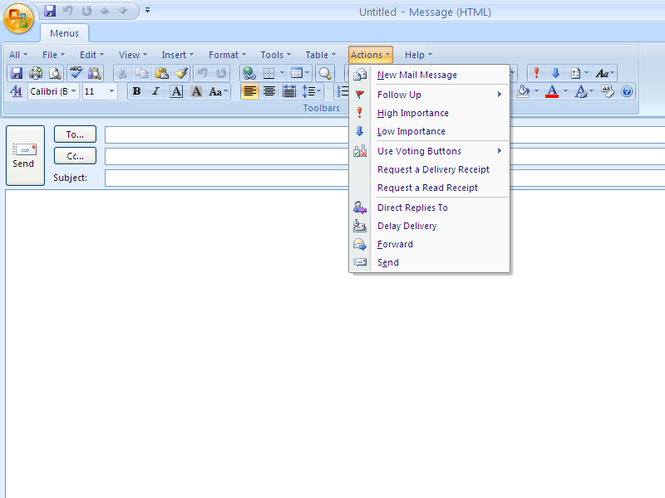
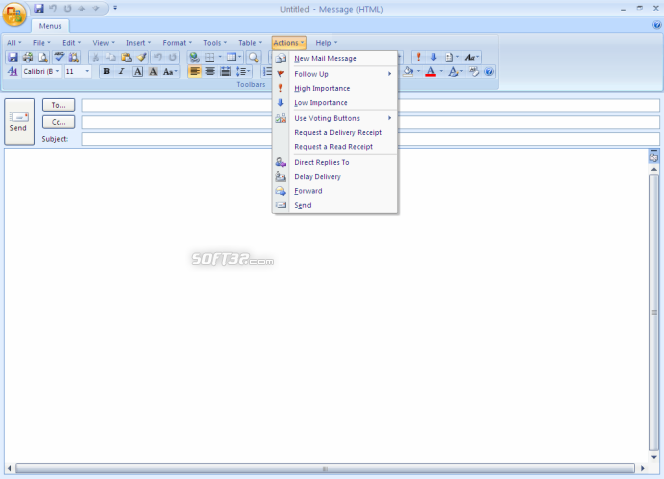
Frustrated by endless searches for features on the Ribbon? Download and install this software to bring back the familiar menus and toolbars to Microsoft Outlook 2007. The software allows you to work with Outlook 2007 as if it were Outlook 2003.
All the new features in Microsoft Outlook 2007 have been added into the Main Menu, the Standard Toolbar and Formatting Toolbar.
User can browse the whole menus with keyboard shortcuts (insert Q into the original shortcuts of Office 2003. For example: press Alt + T to open the "Tools" menu in Outlook 2003, you just need to press Alt, Q, T to open the "Tools" menu in Outlook 2007).
Supports all languages that are supported by Microsoft Outlook 2007 including: English, French, German, Italian, Spanish, Portuguese, Japanese, Chinese, and more.
Add the menus and toolbars to the Quick Access Toolbar, and you can use Access without the ribbon.
Easy to enable or disable the menus and toolbars.
Easy to install and uninstall.
Quickly find and execute the command that you need.
The Menus tab can be shown on the left of Home tab, or shown as the last tab.
Where to buy?
Last updated price and discount information 9 years agoupdate now



 Windows ME and above
 View Screenshots(3)
 Comments
 Download





 Similar Software


 Recently Searched
 Software Categories
 Trending Software


 Like Us

