Version: 0.8 Last Updated: 26 Feb 2017 Release: 16 Jul 2010 Category: Office tools
Rate this software:
217 downloads
View Screenshots(2)
Comments
Download
Liked it? Tell others:
ClipBoardCatcher Details
Works on: Windows 10 | Windows 8.1 | Windows 8 | Windows 7 | Windows 2012 SHA1 Hash: 79cda68687ac2c2a7fd0e8b37fa61edb110b3b92 Size: 150.65 KB File Format: exe
Rating: 2.4
out of 5
based on 23 user ratings
Publisher Website: External Link Downloads: 217 License: Demo / Trial Version
ClipBoardCatcher is a demo software by Alenza and works on Windows 10, Windows 8.1, Windows 8, Windows 7, Windows 2012.
You can download ClipBoardCatcher which is 150.65 KB in size and belongs to the software category Office tools. ClipBoardCatcher was released on 2010-07-16 and last updated on our database on 2017-02-26 and is currently at version 0.8.
Thank you for downloading from SoftPaz! Your download should start any moment now. It would be great if you could rate and share:
Rate this software:
Share in your network:
ClipBoardCatcher Description
The program stores "the history" of exchange buffer: after single placing
information to buffer the utility allows to come back to this information quickly at
any time in future. Thus, having copied nicks of your interlocutors to exchange
buffer by chat only once, you can then insert a desired nick in your phrase without
repeated selecting and copying, or "manual" entering, it allows to speed up your
answers considerably :)
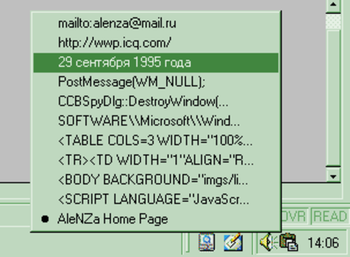
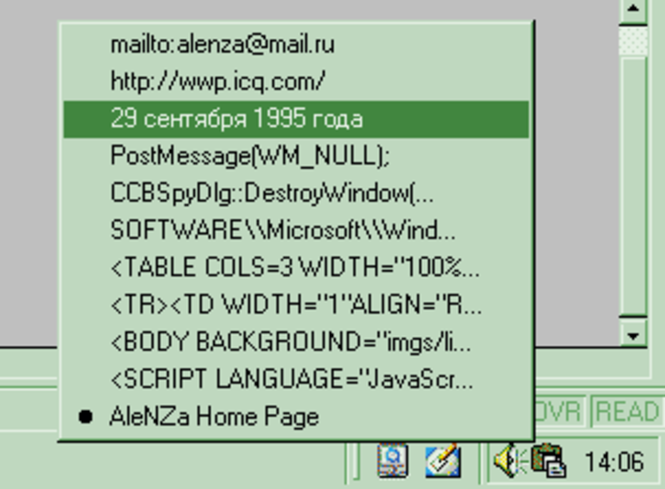
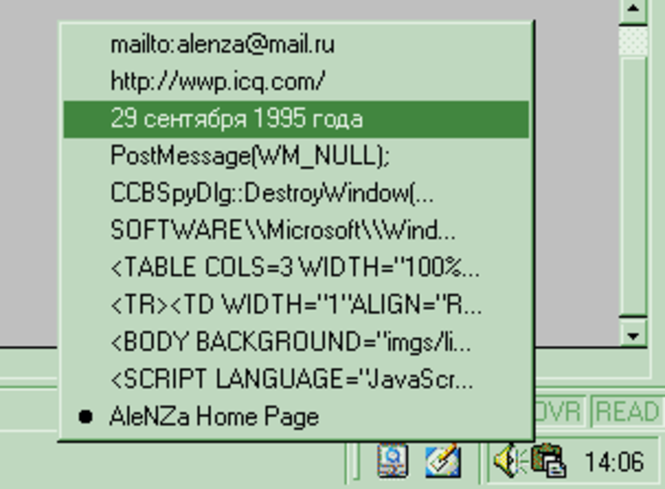
There are two modes of work: default mode - the utility icon
is in Tray, at right-click menu appeares, which contents "the history" of work
with buffer, at selecting the desired text it is
placed in the exchange buffer from where you can copy
it to the place you need. The text which is in the buffer at present
moment is marked by a point. Second mode - the utility is a
usual window. You can also select a desired text and
it will be copied to the buffer. In this case you can
set the utility so that its window is constantly shown on the screen (will not
be overlapped by other windows) - it is useful, e.g.,
at animated discussion with several persons at a
time:) Changing of working modes is carried out in system menu
utilities, it appears at right-click on the icon in Tray, or on
utilities window. The quantity of stored texts is
limited by the number specified in options, also
there you can set the utility so that after selection of a desired text input
focus returnes back to the program you were woking
with before calling CBC (switched on by default)
Window of options is in About dialog
Where to buy?
Last updated price and discount information 9 years agoupdate now



 Windows 7 and above
 View Screenshots(2)
 Comments
 Download





 Similar Software


 Recently Searched
 Software Categories
 Trending Software

 Like Us

